Help center / Review queue and inbox
The inbox shows every comment with the ad it sits under, so you can answer questions and win sales.
Opt-in The inbox, replies and likes is off by default. An admin switches it on under Settings, Client and brand, Advanced actions.
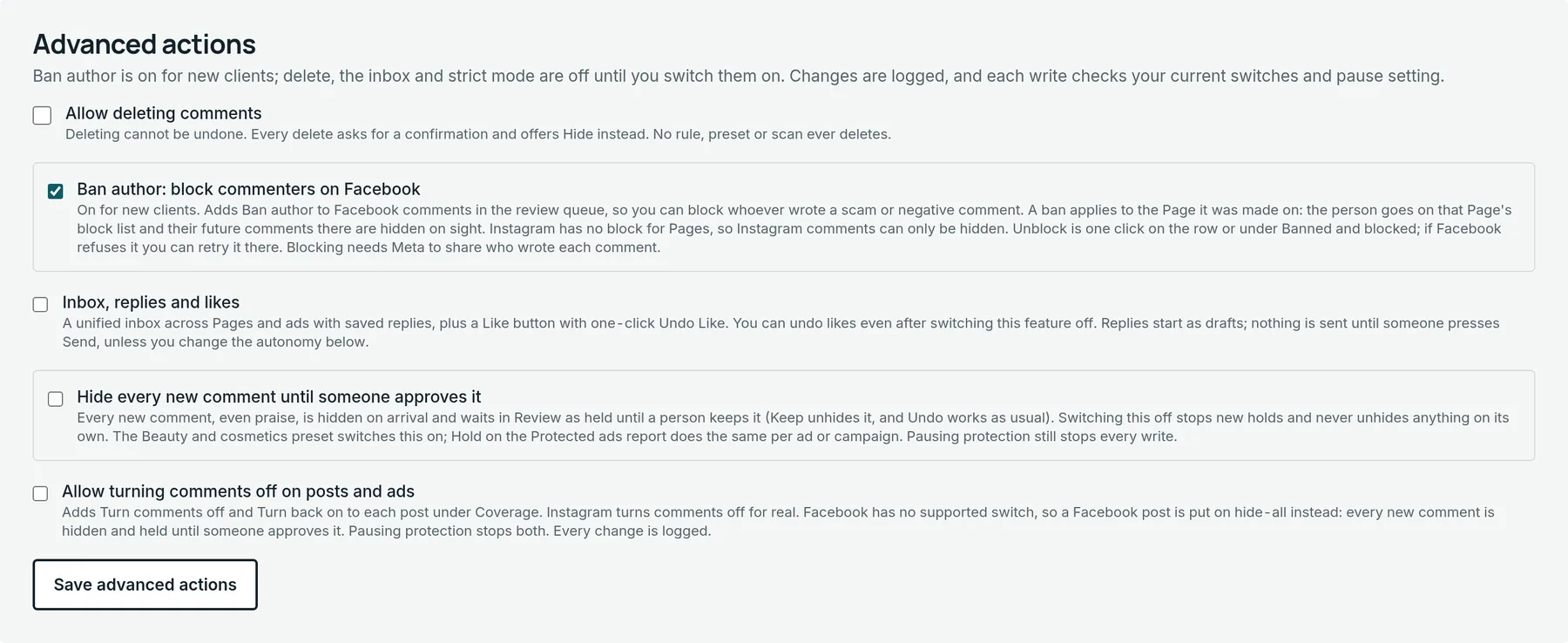
Steps
- Open Client and brand under Settings.
- Under Advanced actions, tick Inbox, replies and likes.
- Choose the AI reply autonomy. Drafts only is recommended.
- Tick AI drafts need a manager’s approval if a manager should check every draft, then choose Save advanced actions.
- Add answers to Knowledge base for AI reply drafts, one “question | answer” per line, and choose Save brand and context.
- Open Saved replies to add templates, then open Inbox.
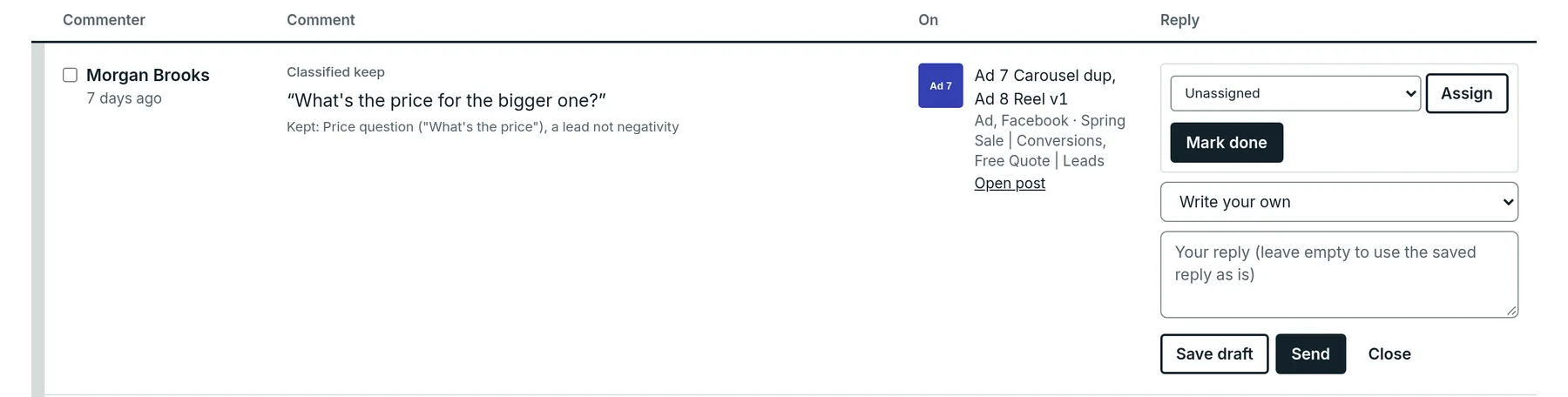
A draft that finds no answer in the knowledge base is flagged as lacking knowledge and is never sent automatically.
Related articles
Screenshots show the dashboard with sample data and may differ slightly from what you see.
Still stuck? Browse the help center or contact us.