Quick answer: go to their profile, tap the three-dot menu and choose Restrict. Or press and hold one of their comments on your post and choose Restrict account. Their new comments will only be visible to them until you approve them. Source: Instagram Help Center: Restrict or unrestrict someone, read 10 October 2026.
What restricting does
- Their new comments on your posts are visible only to them. You can tap See comment to read one, then approve it, delete it or ignore it.
- You stop getting notifications for their future comments.
- They can’t see when you’re online or whether you’ve read their messages.
- Comments they left before you restricted them stay as they are. Hide or delete those separately.
Way 1: from their profile
- Open their profile.
- Tap the three-dot menu in the top right.
- Tap Restrict.
Way 2: from a comment
- Open your post and tap Comments.
- Press and hold their comment.
- Tap Restrict account.
Way 3: from settings
- Open Settings and privacy.
- Under how others can interact with you, tap Restricted.
- Search for the account and tap Restrict.
Restrict, block or hide: which should a business use?
| Feature | Hide comment | Restrict | Block |
|---|---|---|---|
| Affects | One comment | All their future comments | The whole account |
| Do they know? | Not told | Not told | Can usually tell |
| Easy to undo? | Yes | Yes | Yes, but they may notice |
| Best for | A one-off negative comment | Repeat trolls, angry ex-customers | Spam bots, scammers, harassment |
For ads, restrict is often the better choice. It keeps a persistent critic from derailing every ad, without the backlash that a visible block can cause.
Can a tool restrict people automatically?
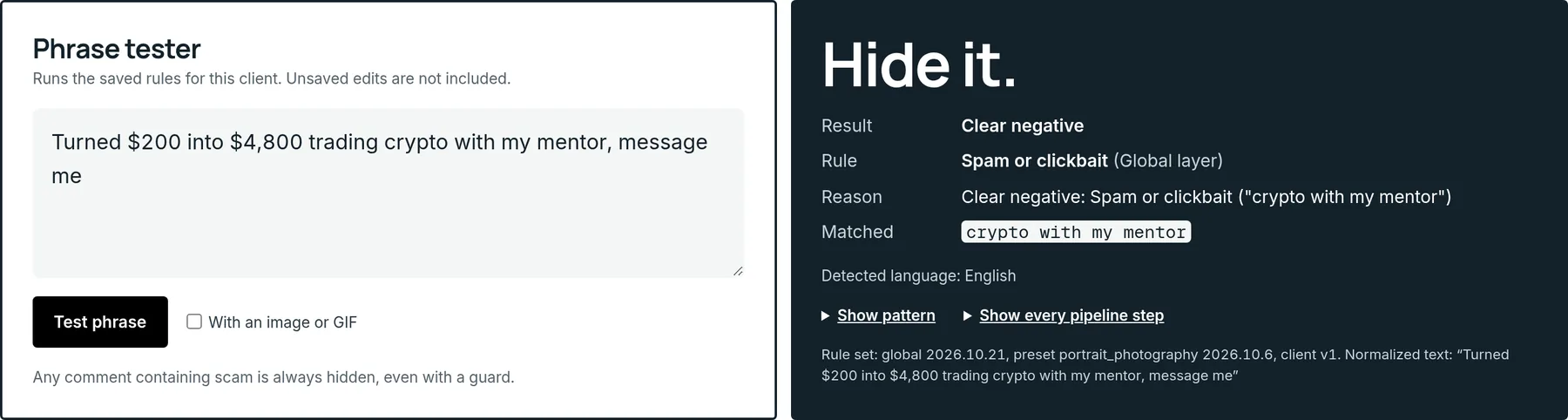
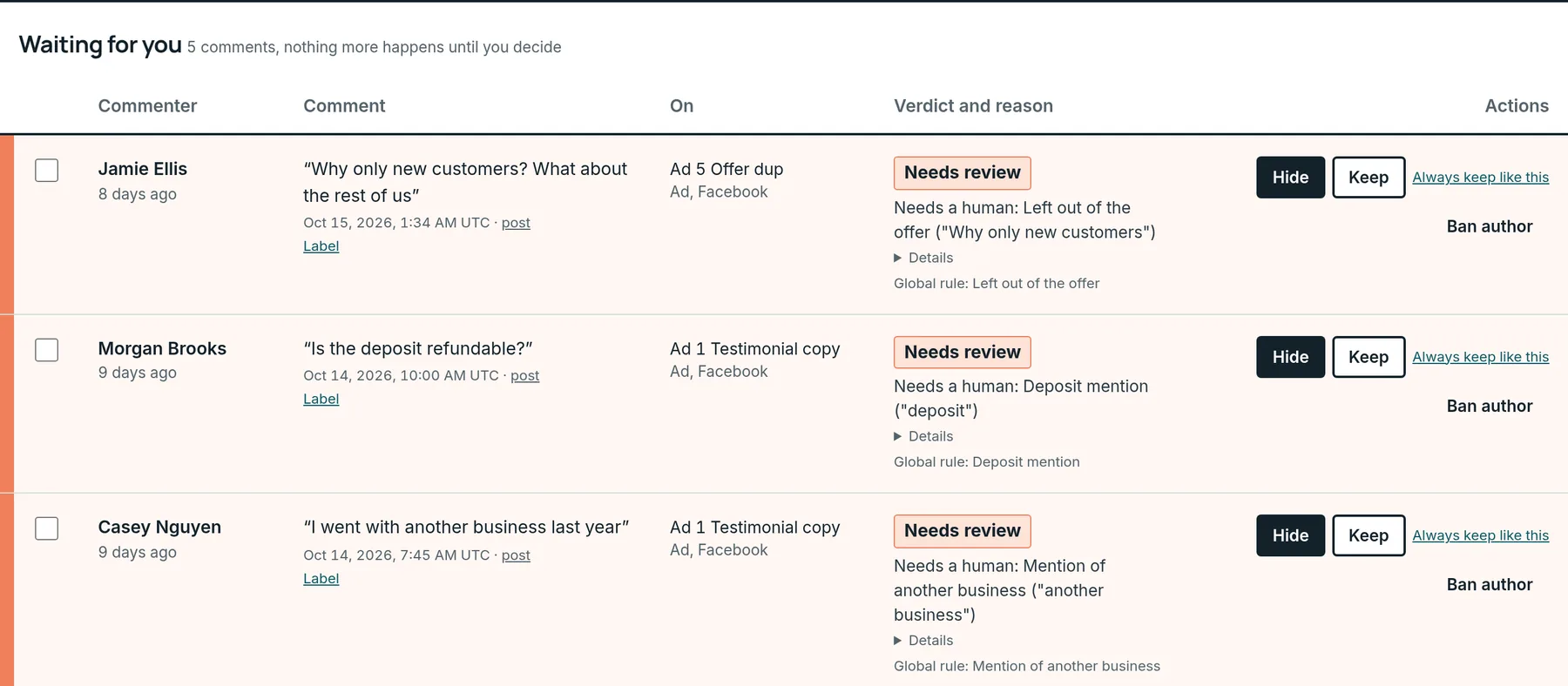
Not today. Instagram doesn’t offer restrict or block to third-party apps through its API, so any tool claiming to restrict automatically is worth questioning. What a tool can do is hide each negative comment as it arrives. CommentHide does that on Instagram ads, and leaves restrict and block as a manual choice for you.
Related: how to hide comments on Instagram ads and how to ban someone from a Facebook Page.
Frequently asked questions
Does the person know they’re restricted?
Instagram doesn’t notify them, and from their side their comments look normal.
Does restricting hide their old comments?
No. Restrict applies to new comments. Hide or delete earlier comments one by one.
Can I restrict someone from commenting on my ads?
Restrict applies to their comments on your content, which includes ads run from your Instagram account.
Want your ad comments cleaned up automatically? Connect your Facebook and Instagram ad accounts and the first scan runs straight away.